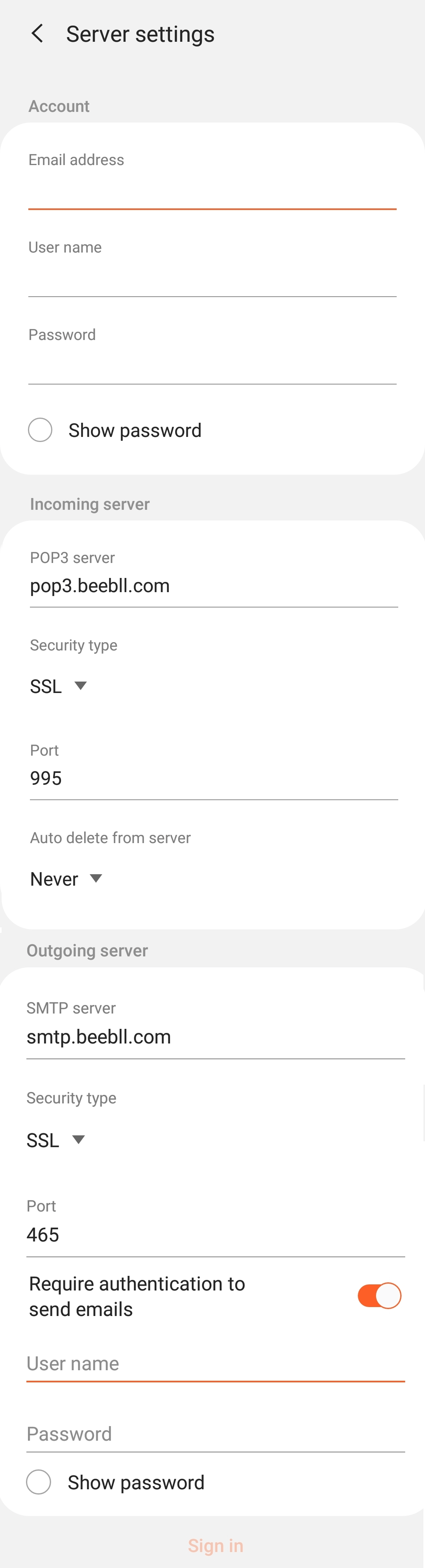
Here's how to set up a Beebll email on an Android phone or tablet:
Account Type: IMAP
1. Open the mail application on your Android device.
2. Select Add New Account
3. Select Other 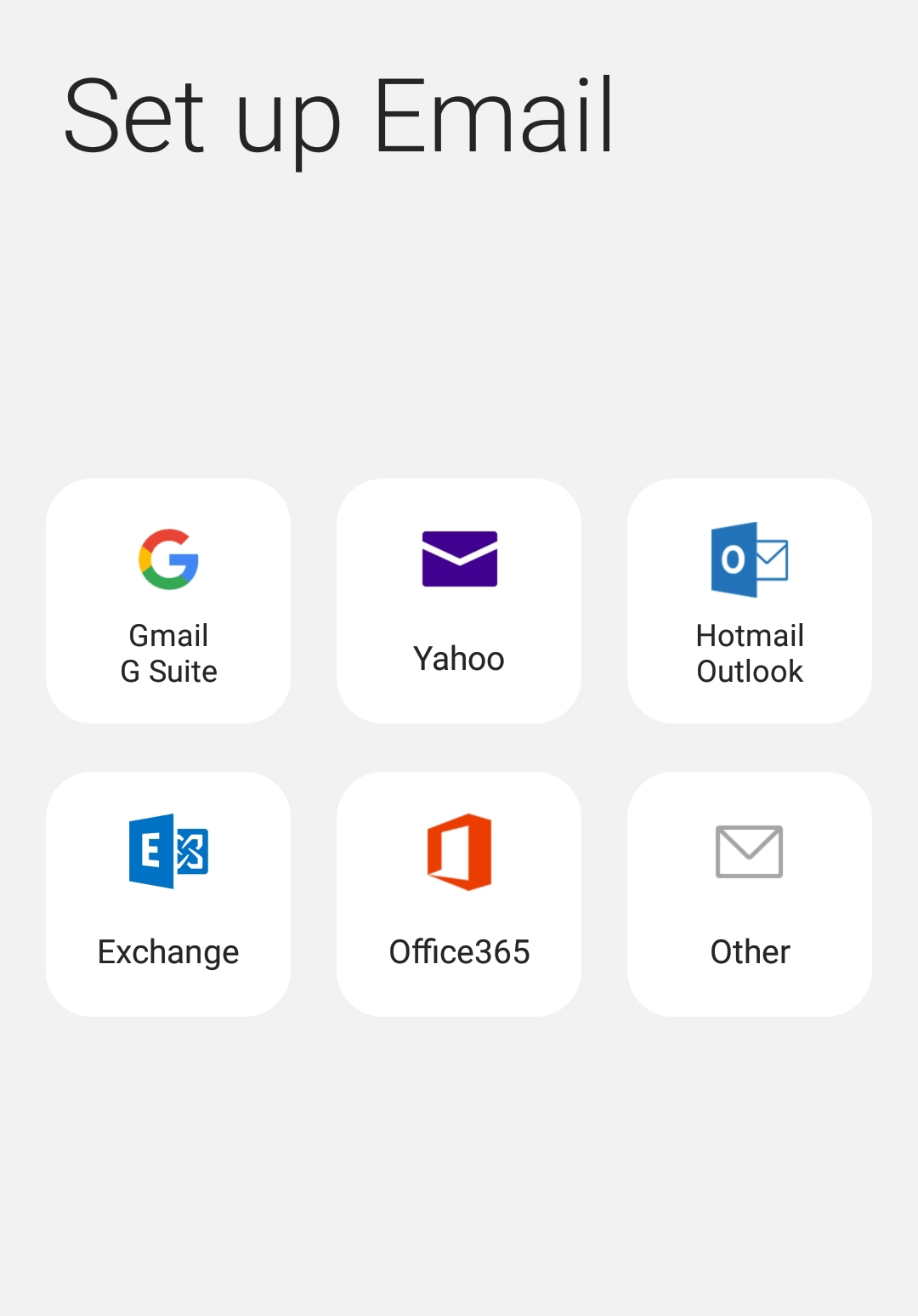
4. Enter your email and password.
5. Select Manual Setup.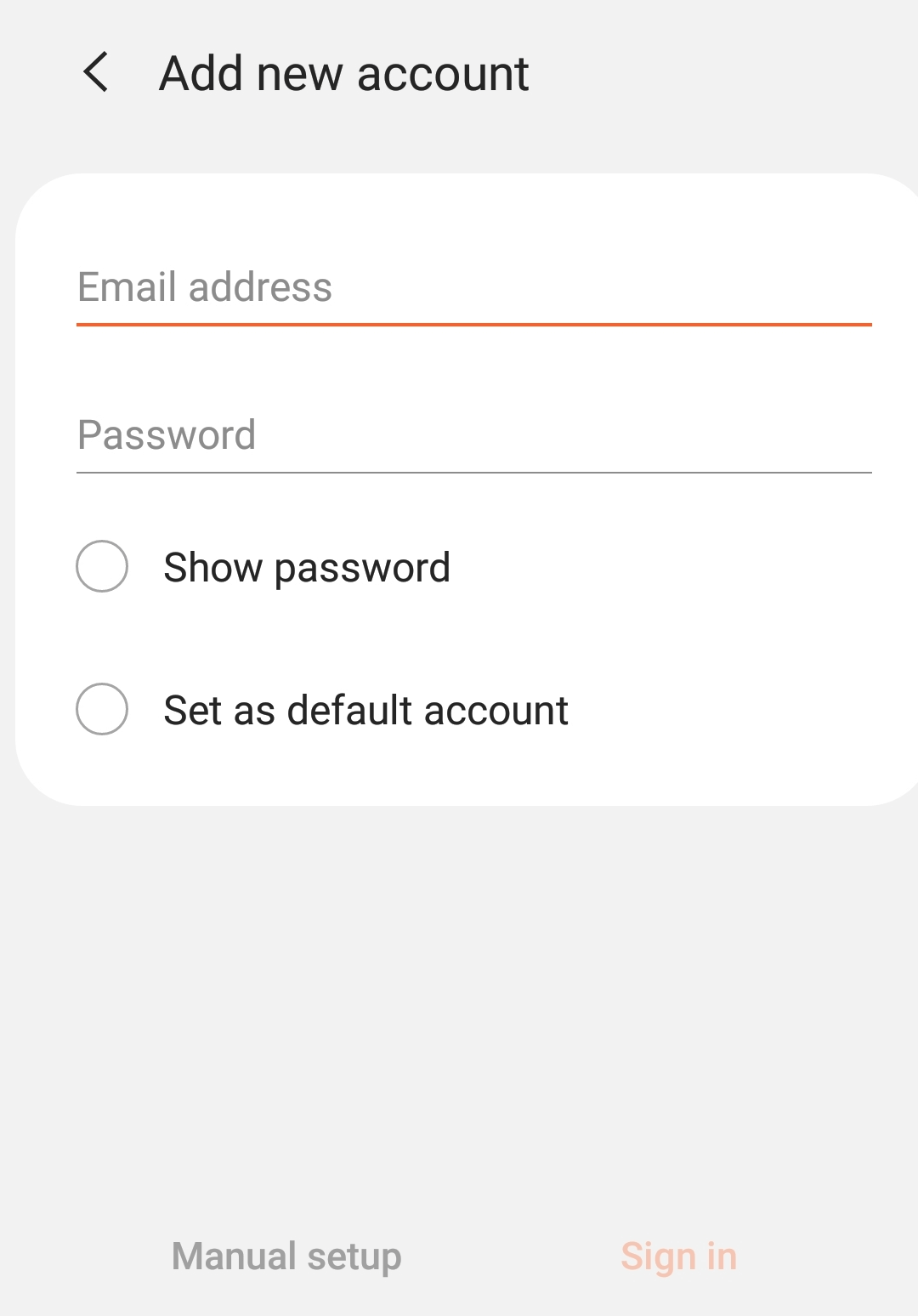
6. Select IMAP account.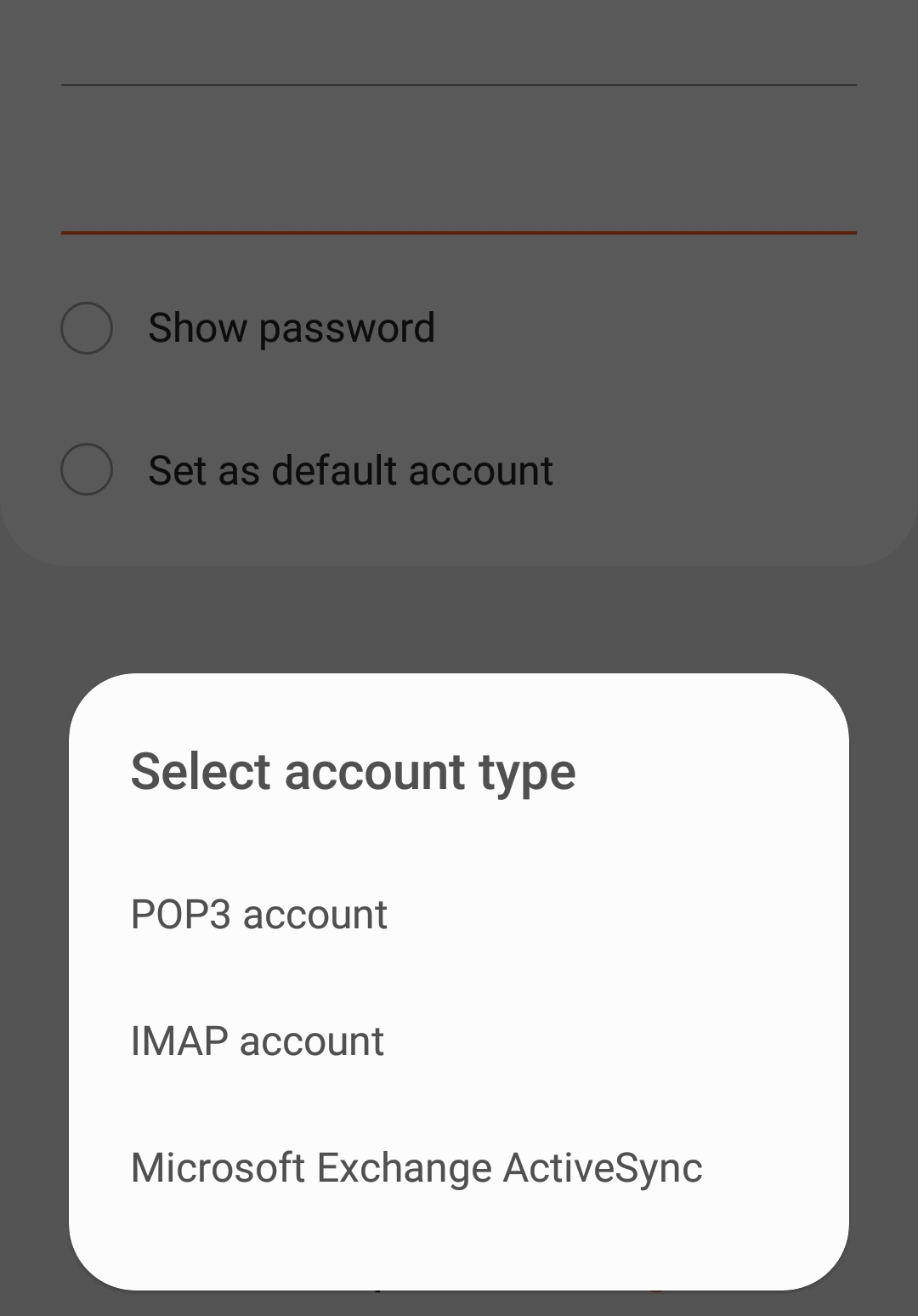
7. Enter your Email, Username and password (same as the username and password for your mailbox.)
8. Incoming Server
- IMAP Server: imap.beebll.com or imap.your domain name
- Security Type: SSL
- Port: 993 (143 for non-SSL)
9. Outgoing Server
- SMTP Server: smtp.beebll.com or smtp.your domain name
- Security Type: SSL
- Port: 465 (25 or 587 for non-SSL)
- Check Require authentication to send emails.
10. The outgoing mail server Username and Password are the same as username and password for your mailbox.
11. Select Sign In and the mailbox will be added to your Android.
Account Type: POP3
1. Open the mail application on your Android device.
2. Select Add New Account
3. Select Other 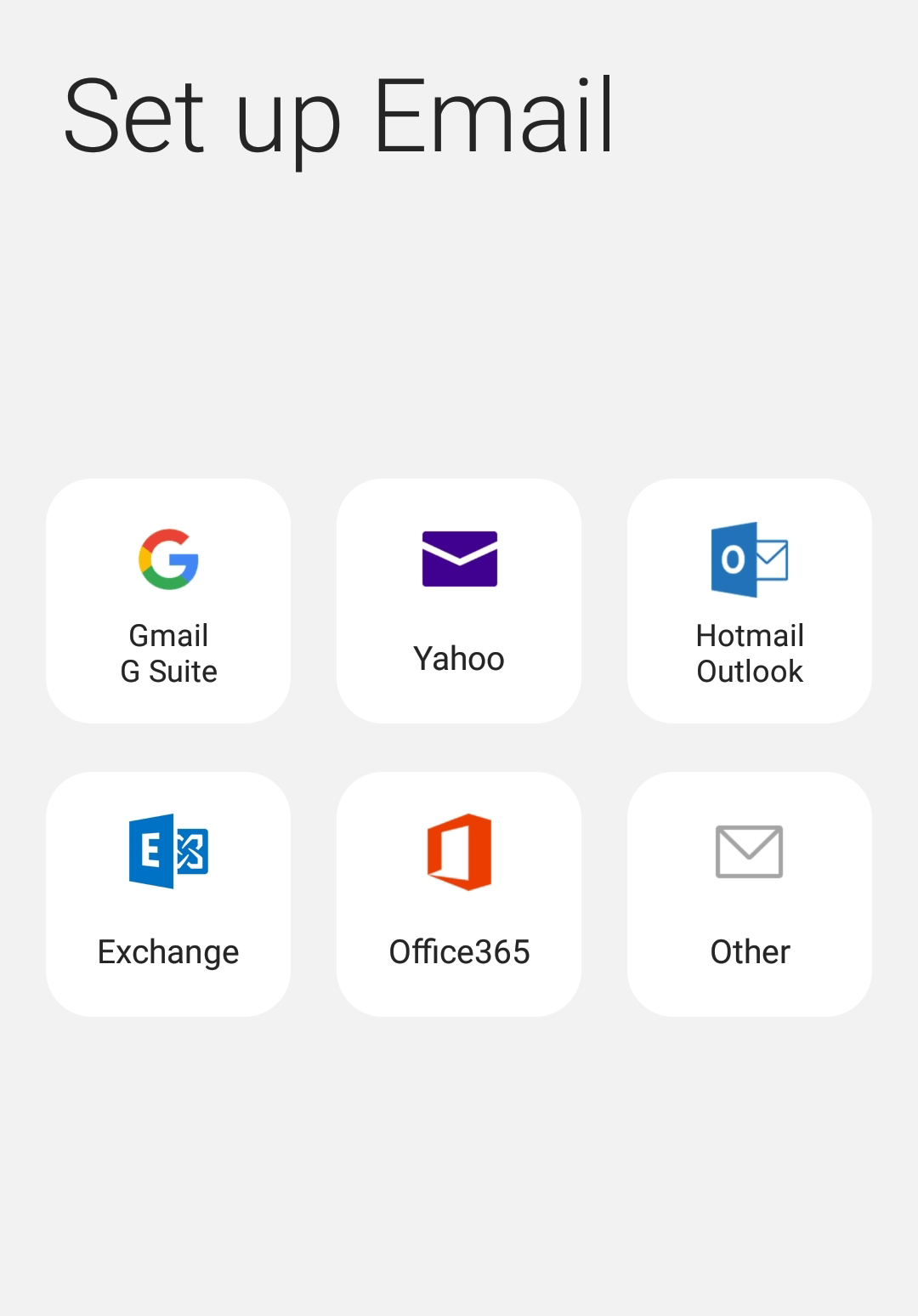
4. Enter your email and password.
5. Select Manual Setup.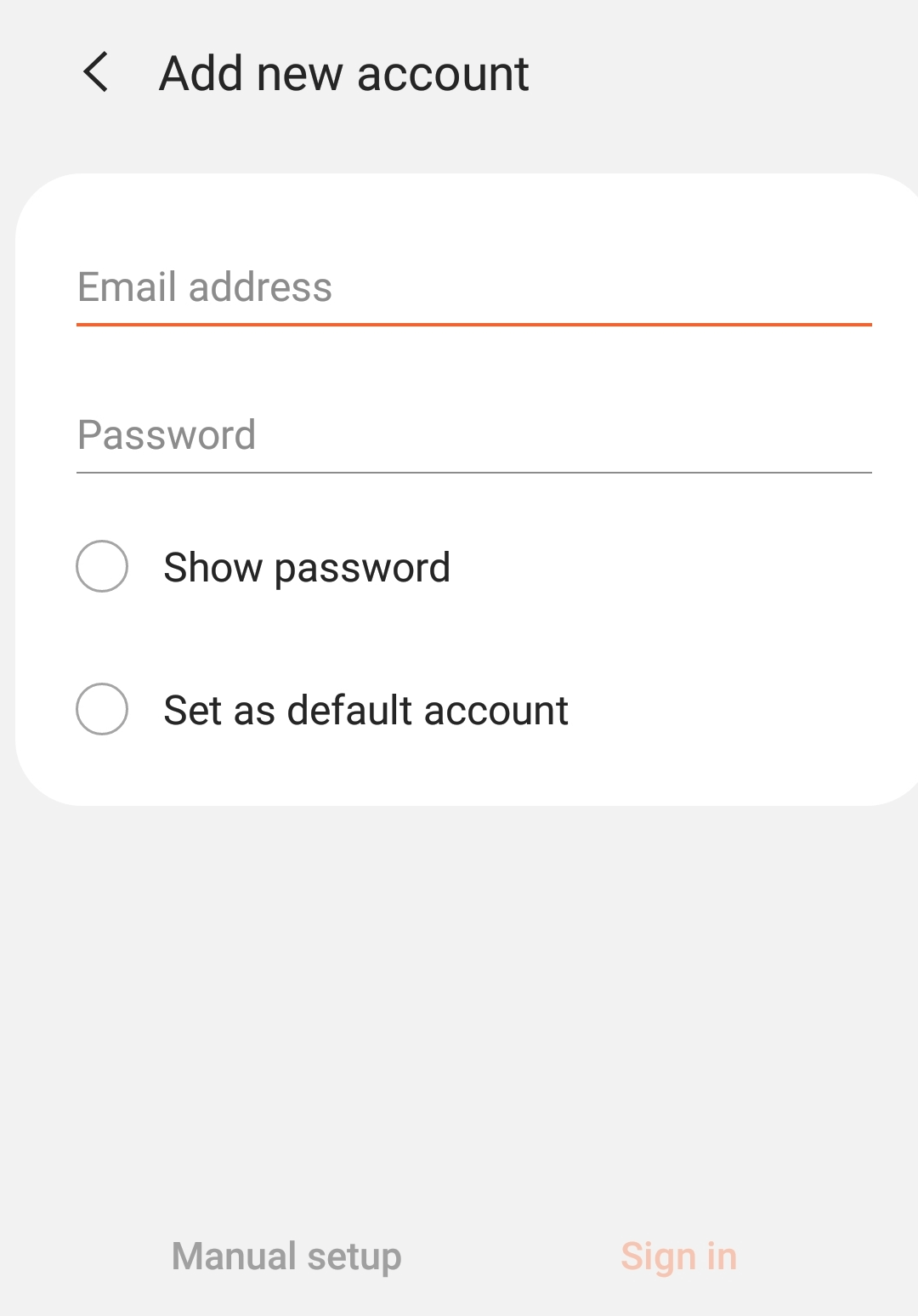
6. Select POP3 account.
4. Enter your Email, Username and password (same as the username and password for your mailbox.)
5. Incoming Server
- POP3 Server: pop3.beebll.com or pop3.your domain name
- Security Type: SSL
- Port: 995 (110 for non-SSL)
- Auto delete from server: Never
6. Outgoing Server
- SMTP Server: smtp.beebll.com or smtp.your domain name
- Security Type: SSL
- Port: 465 (25 or 587 for non-SSL)
- Check Require authentication to send emails.
7. The outgoing mail server Username and Password are the same as username and password for your mailbox.
8. Select Sign In and the mailbox will be added to your Android.